Short answer: an exception report puts last month’s actuals next to the forecast made for that month (with the right lag) and shows only the items that need attention. Sort items by value with ABC analysis, group the errors into buckets such as “forecasted but not sold” and “under-forecasted”, and sense-check growth rates against the same period last year. Then flag only the items where both the error and its value are large, or where the forecast is consistently biased in one direction. Those are the exceptions worth a planner’s time.
How to Analyse Variations in Forecast vs. Actuals to Improve Forecasts
A demand planner’s job doesn’t end once the forecast numbers are generated. To help the planning team correct the forecast, it’s best to have exception reports in place.
Finding the anomalies in the data and turning them into exception reports is what makes the comparison useful; otherwise it is just a mass of numbers that everyone struggles to make sense of. A good planning process starts by placing last month’s actuals next to last month’s forecast (with lag). This acts as a mirror for everyone involved in the process.
Once forecast and actuals sit side by side, what should a planner do with them? Here are a few options.
ABC analysis
The process starts by categorising items into A, B and C classes by value. This lets the planning team focus on the important A items and use its time well. A company with thousands of products can’t review every item within a short planning window. The aim is to identify high deviations and concentrate on the items that matter.
For more on the theory of ABC analysis, read on here.
Bucket analysis
Sorting errors into buckets helps you dig into their causes. Useful buckets are:
- Forecasted but not sold
- Not forecasted but sold
- Under-forecasted
- Over-forecasted
- Not forecasted and not sold
This categorisation should happen at the level at which planning happens and forecast accuracy is measured. Adding the monthly trend and year-on-year figures gives a better perspective on the numbers.
With items placed in buckets, it’s easier to focus, identify problems and find solutions. The bucket tells you which questions to ask and whom to ask. For example, if a high-deviation A item falls into the first bucket, forecasted but not sold, you would ask the sales team why it didn’t sell.
If an item falls into the second bucket, not forecasted but sold, you might ask the inventory manager or distributor why stock of an unforecasted item was in the store. And because it did sell, check whether there is demand at this time of year that you weren’t expecting. The other buckets point to their causes in the same way.

Growth analysis
Use month-on-month (MoM) and year-on-year (YoY) growth to sanity-check the forecast. But the current month’s MoM and this year’s YoY alone aren’t enough to judge a number.
Say an item shows MoM growth of 55%. It’s tempting to conclude that this is very high growth, but the product may simply be seasonal and peak in this month. So you check YoY as well, which is, say, 65%, and you might now assume the forecast is wrong. You still haven’t seen the complete picture: to conclude properly, check last year’s MoM and YoY for the same period. If the product showed a similar growth pattern last year, you can set these high values aside and focus on items where the growth rates differ sharply from year to year. A large difference means either the trend is changing or something important has been missed. These are the real exceptions to work on and correct. Building this check into your exception reports adds a great deal to the planning process.

In the example above, the first item has YoY and MoM growth of −50% and −49% against last year’s values. Highlight only the exceptions where the trend is drastically different.
A simple exception-report checklist
An exception report is only useful if it’s short. Use two filters together, the size of the error and the value at stake, so that a large percentage miss on a slow, cheap item doesn’t crowd out a moderate miss on a best-seller. The thresholds below are starting points; tune them to your own business.
- Compare like with like. Use the forecast made at the lag that matters for supply (for example, the forecast made one or two months before the month in question), not the latest revision.
- Calculate the error for every item. Absolute percentage error per item, plus WAPE (total absolute error ÷ total actuals) for the group, so large items carry more weight.
- Calculate the value of the error. Absolute error in units × unit cost. Rank items by this figure: it shows where a miss costs the most in stock or lost sales.
- Apply thresholds by class. For example, flag A items with an error above 15%, B items above 25% and C items above 40%, and any item whose error value falls in the top 20 of the list, whatever its class.
- Check bias, not just error. Bias % = Σ(forecast − actual) ÷ Σ actual. Flag items that have been over- or under-forecast in the same direction for three months running, or whose bias is beyond ±10%. Consistent bias usually has a process cause, such as optimistic sales input, that a model change won’t fix. Our guide on how to measure forecast bias explains this in more detail.
- Assign a bucket and an owner. Put each flagged item in one of the five buckets above and name who will explain it: sales, supply, marketing or the planner.
- Record the cause and the action. Note whether the miss came from a promotion, a stockout, a new customer, a data error or a model issue, and what will change in next month’s forecast.
- Review the trend. Track accuracy and bias month by month to see whether the actions are working. A free forecast accuracy template (Excel) is a simple place to start.
In a nutshell
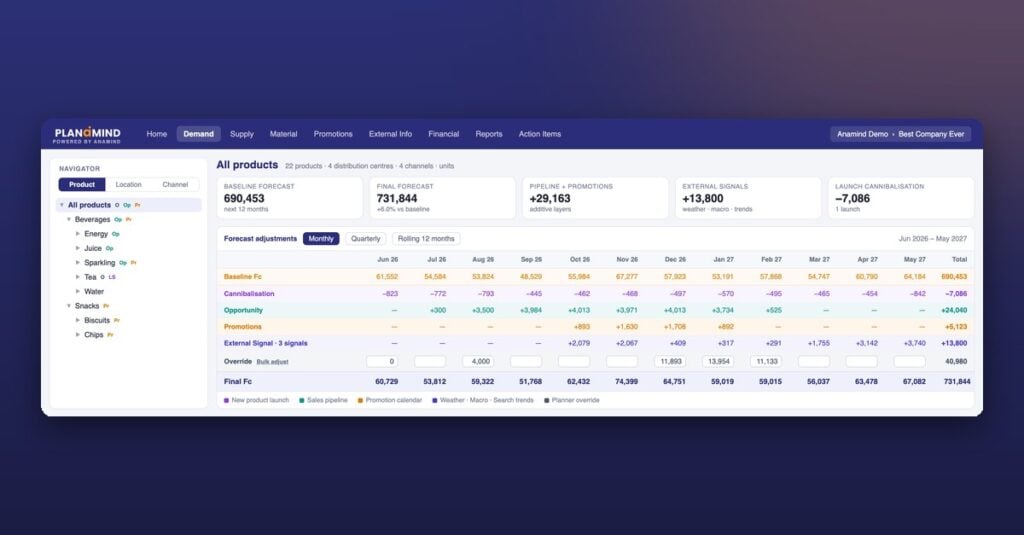
These exception reports will help make your initial forecast more robust and improve the effectiveness of any S&OP process. In Planamind, Anamind’s AI planning platform, the forecast accuracy view reports FA%, WAPE, MAPE and Bias % side by side, labels items as over- or under-forecast, and ranks recommendations for A-class items that are missing by more than 15%. See how it works in our demand planning software.
Frequently asked questions
What is an exception report in demand planning?
It is a report that compares forecast with actuals and shows only the items outside agreed limits, such as a large error on a high-value item or a forecast that is consistently too high or too low. It lets planners spend their time on the few items that matter instead of reviewing everything.
What thresholds should an exception report use?
Combine error size with value. A common starting point is to flag A items with an error above about 15%, B items above about 25% and C items above about 40%, plus any item with a large error in money terms. Adjust the limits until the report is short enough to review every month.
What is the difference between forecast error and forecast bias?
Error measures how far the forecast was from actuals, in either direction. Bias measures whether the misses lean one way: a forecast can have a moderate error but still be too high month after month. Persistent bias drives excess stock or shortages, so it should be flagged separately.
Which lag should I use when comparing forecast with actuals?
Use the forecast made at the point when supply decisions were taken, typically one to three months ahead depending on your lead times. Comparing actuals with the latest revision makes accuracy look better than it was when it mattered.